3rd phase of the MVC application in Java
This project is a continuation of the previous assignment to create a full-stack MVC application which implements various types of image manipulations, image scripting and interactive graphical user interface.The previous phase of the project has focused on 5 of the 6 image algorithms for the image model. The required tasks in this phase are to implement the last algorithm chosen to be the Mosaic image manipulation effect in this assignment, write a user-defined script with which can be read as single-line commands with or without arguments, implement a controller and a text-based view to support the handling of the script file, implement tests to test the controller in isolation from the model and view, and create a README.md file.
The project contains three main folders: src/folder, test/folder and res/folder. The src/folder contains three packages named imageview , images and script. The images package has the class file of the model, the model interface and other class files related to model. The imageview package has the class files of the GUI controller and view, the view interface, and main driver to run the GUI. The script package is from the previous homework 8 assignment. The test/folder contains mock files of the model, the view, and test file of the GUI controller GuiControllerTest. The res/folder contains the two .png example images, the JAR file, the resulting image samples generated from the program.
- A fully implemented Mosaic algorithm in the ConcreteImageModel with helper methods - addCell(), getColor() and inner class named Cluster.
- Implemented a GUI controller, a frame view and a main program in the imageview directory to allow a user to load, display image, apply image effects and generate a user-defined script.
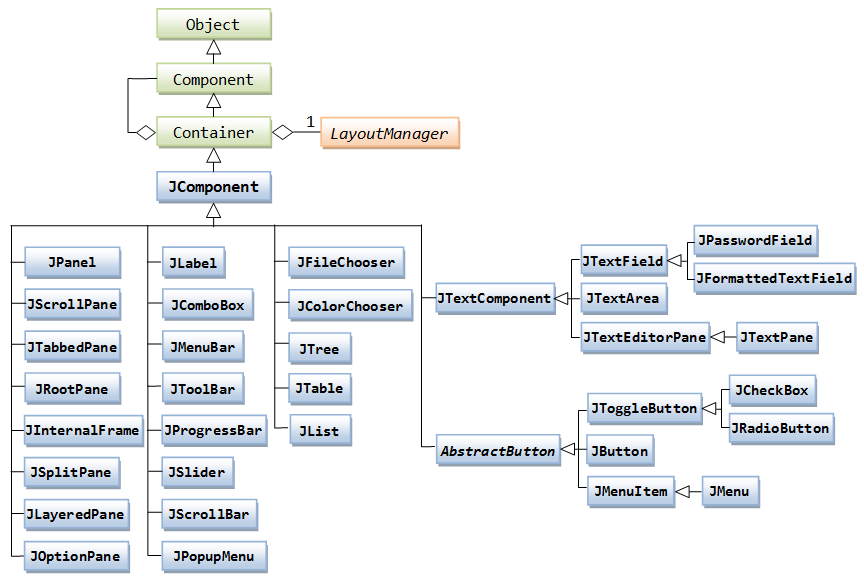
- Used various types of Java Swing components to build the graphical user interface.
- Once the user selects the a .png image file in the designated res folder (except the "temp.png" file), the JScrollPane component is implemented to allow user to scroll the image.
- User interface is expose all the required features of the program: blur, sharpen, grayscale, sepia, dithering, mosaic, as well as the ability to load and save images via a JMenu.
- The user is able to specify the desired image to be loaded for image processing via JFileChooser.
- When a user specifies any image effect operation, the result is visible to the user in the main window.
- Provided a means for the user to interactively create and execute a batch-script.
- Included a robust list of image manipulation commands to test each individual algorithm and the different combined affects.
- Made reasonable attempts to design the GUI in a user-friendly way. See Examples - expected view outputs generated from the GUI.
- Created a mock GUI model and a mock GUI view to independently test the controller from the original model and view with the exception of Run Script test. A total of twelve tests are created in the GuiControllerTest.
- Unable to implement functionality to stack multiple image effects while the user is interactively creating and executing the script.
- Unable to implement functionalities to allow user to successfully exit or save the executable batch-script.
- Unable to implement a separate controller for the script view.
- Unable to test the Run Script command in the controller as it's not implemented.
- Unable to apply keyboard shortcuts to each of the different algorithms.
- The project can be run by either executing the jar file provided as a part of homework 9 files or by importing the src and test folders provided in the submission of this assignment and executing the Main.java file located in the imageview package directory.
- Using JAR-file approach:
- Execute the JAR file by double-clicking on the file with the .jar extension in the res/Jar File sub-folder.
- Important Note: make sure that you have JDK version 8 or higher installed on your machine.
- Using the second approach:
- Extract the archive, including the src and the test folders.
- Create a new Java Project in your preferred IDE.
- Import the src and test folders accordingly in your project.
- Navigate to src/imageview/Main.java and run the Main.java file.
- Using JAR-file approach:
- Use the "Menu Options" bar on the main window to initially load in a desired image. Left-click on the "Menu Options" select the "Load Image File" option.
- The res folder contains sample images for your convenience, such as "brisbane city.png" and "city development.png", but feel free to navigate your way to an external folder on your machine and select the desired png image from it. Please be sure not to select the image named "temp.png" in the res folder.
- A subfolder named Resulting Images inside the res folder contains executed image examples applied with various image effects.
- After selecting the image, click Open.
- The image should appear on the screen, when that happens, click on the "Menu Options" bar on the top left corner of the main window again and choose the Create script option.
- The new window that opens after the previous step is the script window which contains all the manipulation effects that you can perform on an image. It contains six image effects you can pick from:
- Blur
- Sharpen
- Sepia
- Dither
- Grayscale
- Four Mosaic variations: with 1000 seeds, with 4000 seeds, with 8000 seeds and with 15000 seeds.
- Select the option corresponding to the filter effect you want to apply to the image and the resulting image will be displayed in the main window.
- Click on "Menu Options" bar on the main window to exit or save the image with the chosen filter effect applied to it. However, the functionalities to stack multiple image effects while the user is interactively creating and executing the script and save option are not fully resolved.
- Below are the expected view outputs generated from the GUI.


- Below is an example of a user-defined script generated from the GUI.
sharpen mosaic
sharpen
grayscale mosaic
grayscale
sepia mosaic
sepia
dither mosaic
dither
mosaic
mosaic 1000Process finished with exit code 0
-
"Adding elements to a JList", stackoverflow.com - JList
-
"JComponent Class Diagram", geeksforgeeks.org - Java Swing | JMenuBar
-
"JComponent Class Diagram", www3.ntu.edu.sg - JComponent Diagram
-
"Class JComponent", docs.oracle.com - Class JComponent
-
"Visual Guide to Java Swing Components", web.mit.edu - Swing Components
-
"Compile and build applications with IntelliJ IDEA", JetBrains - Build a JAR file in Intellij IDE
-
"Run class in Jar File", stackoverflow.com - Run jar file
-
"Image 1 example", freeimages.com - Brisbane City
-
"Image 2 example", freeimages.com - City Development