Widget Layout
Widgets are positioned in the terminal using a coordinate system.
It spans x characters horizontally and y characters vertically.
The top-left corner is at coordinates (1, 1). The getDesktopWidth()
and getDesktopHeight() commands return the terminal's width and
height. These two values define the position of the lower-right corner
of the terminal. You can retrieve the position of a widget using
getX(), getY(), and getPos(), or set it using setX(),
setY(), and setPos(). Each coordinate is an int, and positions
are represented by FPoint objects. Widgets are always
positioned relative to their parent. The top parent widget in a
parent-child chain contains the terminal desktop, where absolute and
relative positions are identical (getPos() == getTermPos()).
Child widget positions are relative to the parent's top-left corner,
plus optional padding (getLeftPadding() and getTopPadding()).
If you want to ignore padding spaces, you can do so using the
ignorePadding() method.

Figure 1: Widget coordinates
int              getX() const;
int              getY() const;
const FPoint     getPos() const;
int              getTermX() const;
int              getTermY() const;
const FPoint     getTermPos() const;
virtual void     setX (int x, bool adjust = true);
virtual void     setY (int y, bool adjust = true);
virtual void     setPos (const FPoint& p, bool adjust = true);
Set adjust to false when calling setX(), setY(), or setPos()
to prevent an explicit call to adjustSize(). This avoids loops and
redundant execution.
A widget's width and height can be retrieved and set independently.
The getWidth() and getHeight() methods—as well as their
corresponding setWidth() and setHeight() methods—are used for
this. All Dimensions are of type std::size_t because a Dimension
cannot be negative. The parent widget's size automatically limits
the maximum size of a child widget. Retrieve it using
getClientWidth() and getClientHeight(). Some widgets have a
border, a title bar, or both, thereby reducing the maximum size of
the child widget.
widget_width ≥ client_widget_width
widget_height ≥ client_widget_height
Padding provides the required spacing. Use getTopPadding(),
getLeftPadding(), getBottomPadding(), and getRightPadding() to
retrieve the padding for each of the four sides individually.
You can set the padding in the same way by calling setTopPadding(),
setLeftPadding(), setBottomPadding(), or setRightPadding().
widget_width = left_padding + client_width + right_padding
widget_height = top_padding + client_height + bottom_padding

Figure 2: Width and height of a widget
std::size_t    getWidth() const;
std::size_t    getHeight() const;
std::size_t    getClientWidth() const;
std::size_t    getClientHeight() const;
int            getTopPadding() const;
int            getLeftPadding() const;
int            getBottomPadding() const;
int            getRightPadding() const;
virtual void   setWidth (std::size_t width, bool adjust = true);
virtual void   setHeight (std::size_t height, bool adjust = true);
void           setTopPadding (int top, bool adjust = true);
void           setLeftPadding (int left, bool adjust = true);
void           setBottomPadding (int bottom, bool adjust = true);
void           setRightPadding (int right, bool adjust = true);
If the adjust argument is set to false when calling setWidth(),
setHeight(), setTopPadding(), setLeftPadding(),
setBottomPadding(), or setRightPadding(), adjustSize() is not
called. This prevents adjustSize() loops and avoids redundant calls.
A widget's geometry specifies the region where it is displayed on the
terminal. A widget's geometry comprises an FPoint position and an
FSize size. You can manage this geometry as an FRect object with
getGeometry() and setGeometry(). To get the global terminal
geometry, use getTermGeometry(). Use getSize() and setSize()
to retrieve and set the widget's size alone.
Shadows are rendered outside the widget. Retrieve the shadow size as
an FSize object using getShadow(), and update it with
setShadowSize(). Use the FWidget method getGeometryWithShadow()
to get a widget's geometry, including its shadow. To retrieve the
absolutely positioned geometry, use getTermGeometryWithShadow().
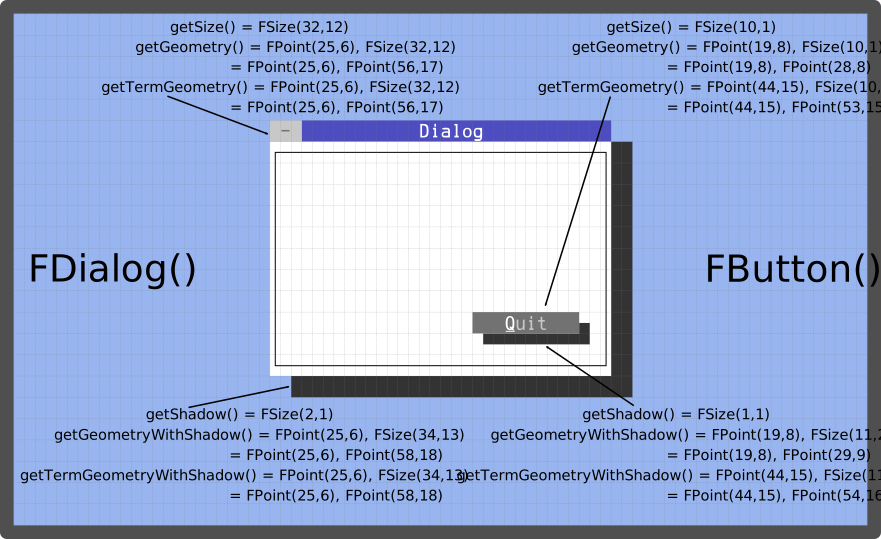
Figure 3: Geometry of widgets
const FSize    getSize() const;
const FSize    getClientSize() const;
const FRect&   getGeometry() const;
const FRect&   getTermGeometry();
const FSize&   getShadow() const;
const FRect&   getGeometryWithShadow();
const FRect&   getTermGeometryWithShadow();
virtual void   setSize (const FSize& size, bool adjust = true);
virtual void   setGeometry (const FRect& box, bool adjust = true);
virtual void   setGeometry (const FPoint& p, const FSize& s, bool adjust = true);
virtual void   setShadowSize (const FSize& size);
Setting the adjust argument to false in setSize(),
setGeometry(), or setShadowSize() prevents adjustSize() from
being called automatically. This can be used to avoid recursive
adjustSize() calls or to avoid redundant adjustSize() calls.
A modern terminal emulator like xterm has no fixed resolution.
You can change the terminal's height and width at any time. This
triggers a resize event that calls the adjustSize() method, which
automatically adapts the widget to the new terminal size. You
can override the adjustSize() method to adjust the size and position
of the widget.
The following geometry-setting methods also trigger adjustSize()
indirectly:
| Position and Size | Padding | Merging Borders |
|---|---|---|
setGeometry() |
setTopPadding() |
setMergingBorder() |
setX() |
setLeftPadding() |
|
setY() |
setBottomPadding() |
|
setPos() |
setRightPadding() |
|
setWidth() |
||
setHeight() |
||
setSize() |
For scalable windows derived from FDialog, users can resize the
dialog by clicking on the bottom-right corner of the window. You can
intercept a scaling action by overriding the setSize() method and
adjusting the client widgets.
File: size-adjustment.cpp
#include <final/final.h>

using namespace finalcut;

class DialogWidget : public FDialog
{
  public:
    explicit DialogWidget (FWidget* parent = nullptr)
      : FDialog{parent}
    { }

  private:
    void initLayout()
    {
      setText ("Dialog");
      setResizable();
      button.setGeometry (FPoint{1, 1}, FSize{12, 1}, false);
      input.setGeometry (FPoint{2, 3}, FSize{12, 1}, false);
      // Set dialog geometry and call adjustSize()
      setGeometry (FPoint{25, 5}, FSize{40, 12});
      setMinimumSize (FSize{25, 9});
      FDialog::initLayout();
    }

    inline void checkMinValue (int& n)
    {
      if ( n < 1 )  // Checks and corrects the minimum value
        n = 1;
    }

    void centerDialog()
    {
      auto x = int((getDesktopWidth() - getWidth()) / 2);
      auto y = int((getDesktopHeight() - getHeight()) / 2);
      checkMinValue(x);
      checkMinValue(y);
      setPos (FPoint{x, y}, false);
    }

    void adjustWidgets()
    {
      const auto bx = int(getWidth() - button.getWidth() - 3);
      const auto by = int(getHeight() - 4);
      button.setPos (FPoint{bx, by}, false);
      input.setWidth (getWidth() - 4);
      const auto ly = int(getHeight() / 2) - 1;
      input.setY (ly, false);
    }

    void adjustSize() override
    {
      // Calling super class method adjustSize()
      FDialog::adjustSize();
      // Centers the dialog in the terminal
      centerDialog();
      // Adjust widgets before drawing
      adjustWidgets();
    }

    void draw() override
    {
      // Calling super class method draw()
      FDialog::draw();

      print() << FPoint{3, 3}
              << FColorPair{FColor::Black, FColor::White}
              << "Text on "
              << FColorPair{FColor::Blue, FColor::Yellow}
              << "top";
    }

    FLineEdit input{"Middle", this};
    FButton button{"&Bottom", this};
};

auto main (int argc, char* argv[]) -> int
{
  FApplication app(argc, argv);
  DialogWidget dialog(&app);
  FWidget::setMainWidget(&dialog);
  dialog.show();
  return app.exec();
}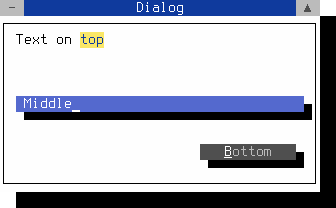
Figure 4: Dynamic layout
Note
To close the dialog, use the mouse or press Shift+F10 or Ctrl+^
Save the code as size-adjustment.cpp and compile it using the following command:
c++ size-adjustment.cpp -o size-adjustment -O2 -lfinal -std=c++14